Variations
What prints with the starting settings
| Paper | Tablet 3:4 (iPad 10.2/12.9, reMarkable, Kindle Scribe) — 150 × 200 mm (5.91 × 7.87 in) |
|---|---|
| Line spacing | 7.14 mm = 0.281″ |
| Cue column | 45 mm |
| Summary box | 35 mm |
| Margins | 10 mm |
| Line weight | 0.18 mm (bold 0.35 mm) |
| Print setting | Scale 100% / Actual size |
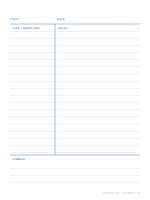
Cornell notes on a tablet
The Cornell method splits each page into three parts: notes during the lesson, cues and questions afterwards, and a summary at the bottom. It works beautifully on a tablet, because you can go back and add cues in a different colour, and search them later.
Sized for the screen
On a 3:4 tablet page, the cue column is 45 mm and the summary box 35 mm tall, proportions that leave plenty of space for notes while keeping the layout recognisable. Both can be changed in the generator, along with the line spacing.
A study routine
- During the lesson: write main ideas in short phrases in the notes area.
- After the lesson: turn each idea into a question in the cue column.
- Summary: write two or three sentences in your own words.
- Review: cover the notes with a sticky-note shape or by scrolling, and answer the cue questions.
The Cornell method guide explains each step in detail, and printable versions are on the Cornell notes page.
More digital paper sheets
Frequently asked questions
Why is the cue column narrower than on paper?
Tablet pages are smaller than Letter or A4, so a 45 mm cue column leaves enough room for notes. You can change it in the generator.
How do I use it in class?
Take notes in the right-hand area during the lesson, add questions and key words in the cue column afterwards, and write a summary at the bottom.
Can I search my handwriting?
Most note apps can search handwriting, so cue-column keywords make topics easy to find later.
Which apps does it work in?
Any app that imports PDF or images: GoodNotes, Notability, Noteshelf, OneNote and others.
Last updated · About us